Generate a draft of the contract
Once the contract details have been completed, you can now generate a copy of the contract to be included when requesting approval from the P2i Senior Director.
The first step is to create a draft in P2i:
-
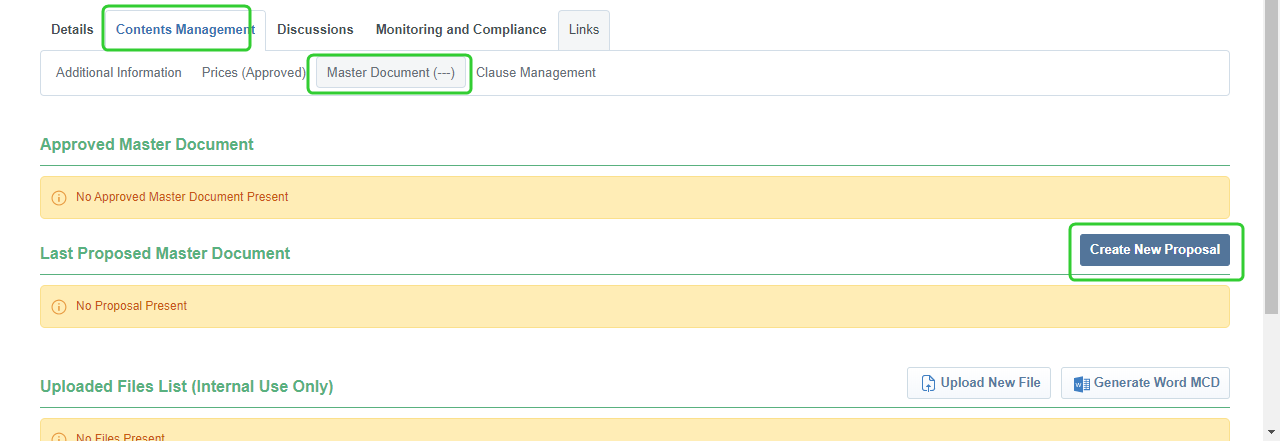
Click Contents Management tab > Master Document page.
-
Click Create New Proposal
-
Click Create New Proposal
-
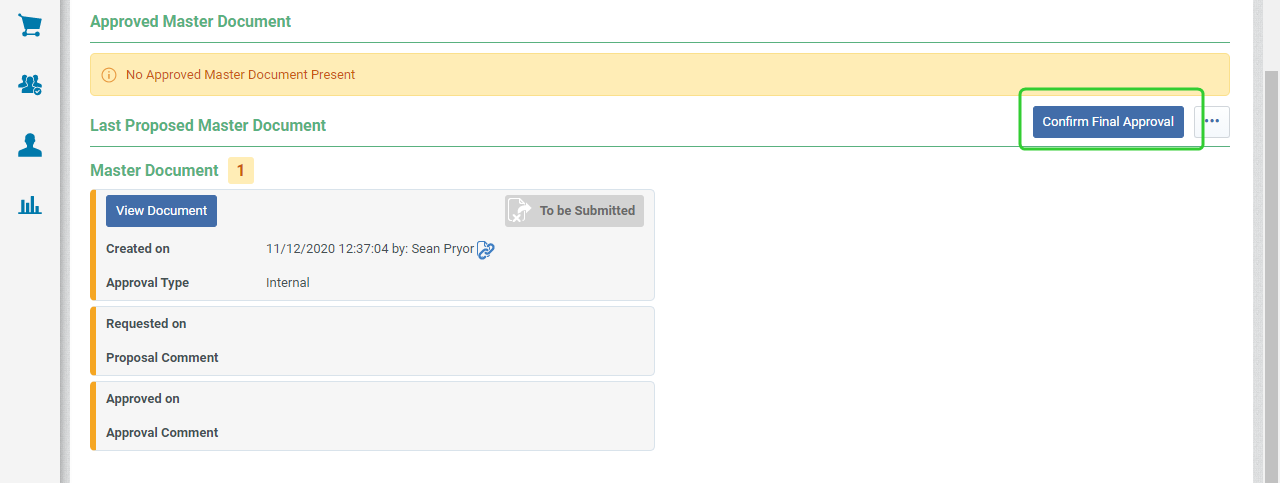
Click Confirm Final Approval.
-
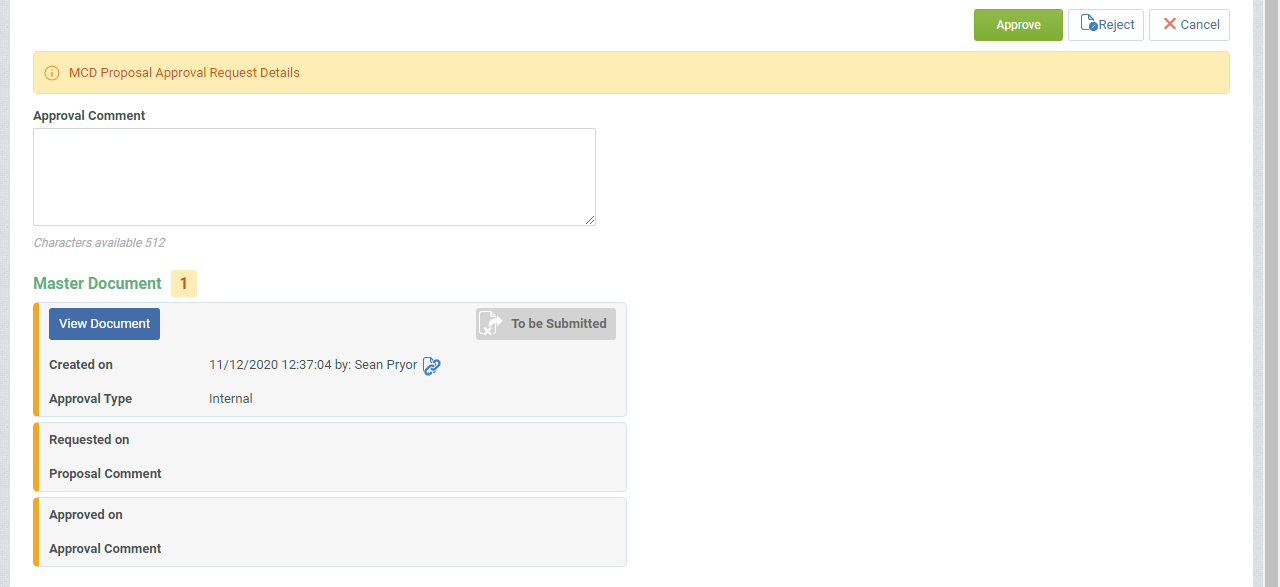
Click Approve.
-
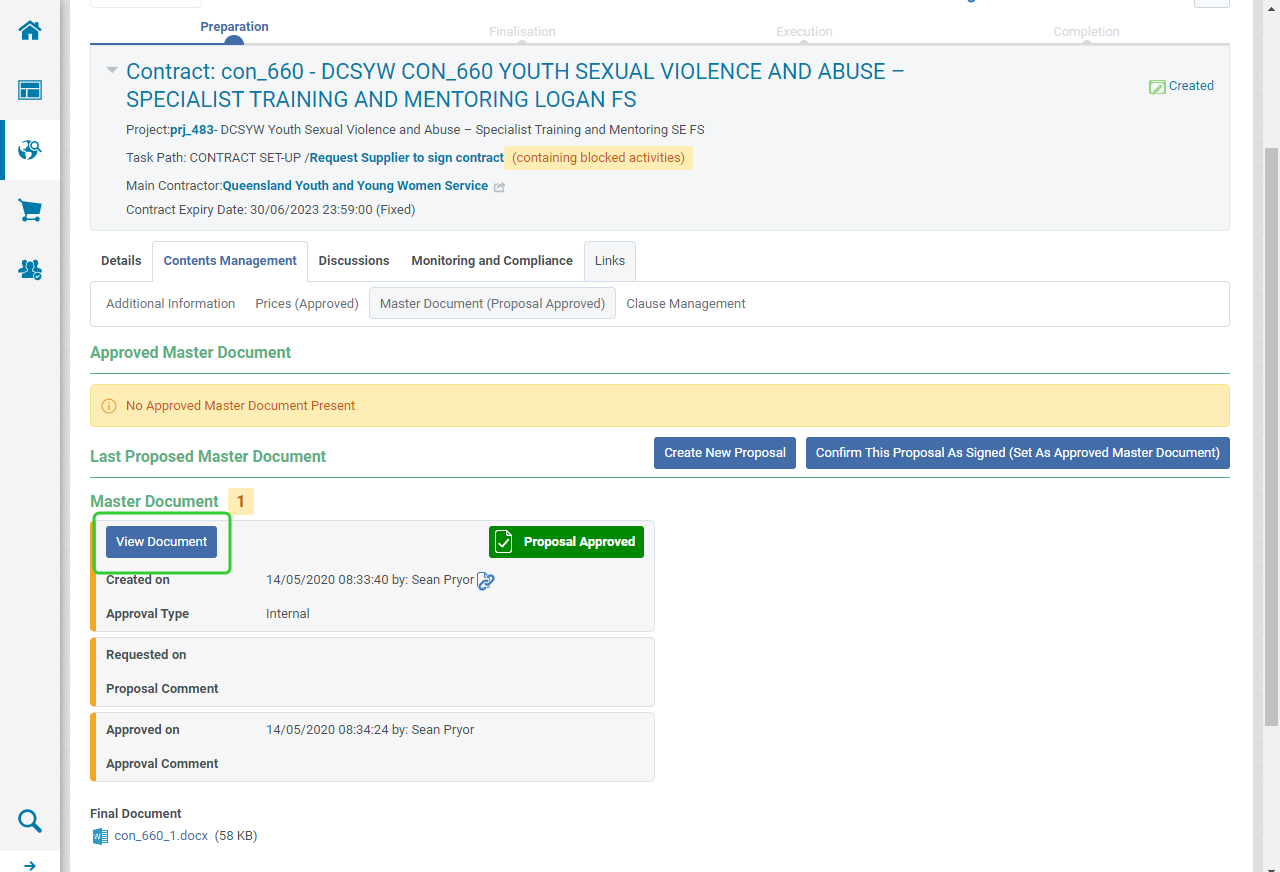
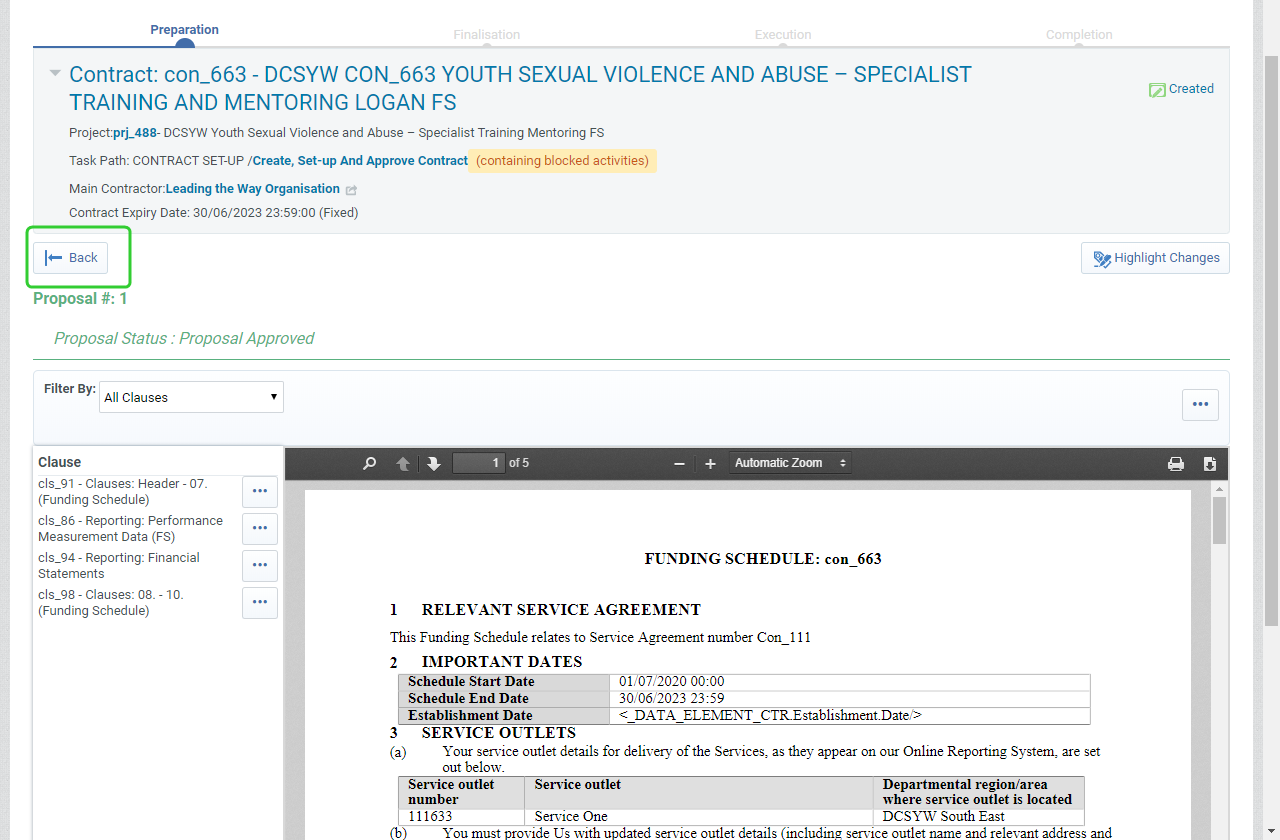
Click View Document.
-
Review the Contract and click Back when done.
| Option | Source | Use Case |
|---|---|---|
|
From the Enable Library Clause |
Standardised, pre-approved clauses stored in the clause library |
Use when needing the most up-to-date, compliant, and standardised clauses |
|
From the Latest Clause Revision |
The most recent version of a clause that was modified in a prior contract or proposal |
Use when needing to maintain continuity with a customised clause from a previous contract |
| From Previous Proposals | Clauses from a specific previous proposal or contract |
Use when wanting to replicate clauses from a past proposal that are relevant to the current one. Will need to pick which proposal version. |
Note Now attach a copy of the Contract to the approved set up documents list. Refer to the topic, Attach approved contract set up documents to a funding schedule.